Move your Photos library to an external SSD on Mac
Updated
To free space on your Mac while keeping your albums and edits in Photos, copy the entire Photos library to a directly connected SSD. Open and check that copy before removing the library from your Mac.
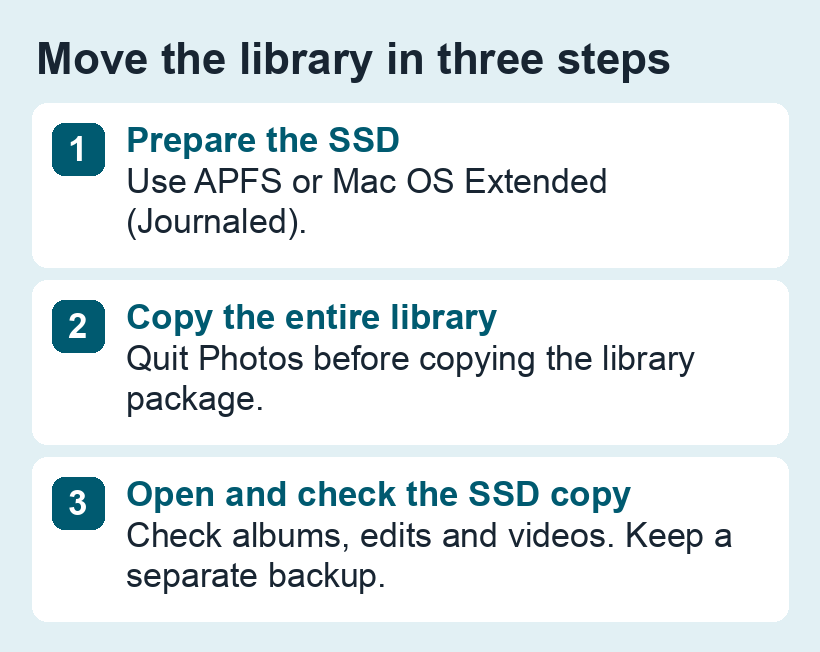
1. Check the SSD and the library
In Finder, select the SSD and press ⌘ + I. Apple supports APFS and Mac OS Extended (Journaled) for an external Photos library. If the drive is exFAT, use another drive or back up its contents before changing the format. Erasing removes the files on that drive.
Use a different physical drive for Time Machine backups. Apple also advises against storing the library on a network share, in cloud storage, on an SD card or on a USB thumb drive.
Check the size of the library in Finder and leave room for growth. If Photos uses iCloud with Optimise Mac Storage, the local library may be smaller than your full collection. Allow extra space if you intend to download the originals. If you have referenced originals stored outside the library, copy those separately or consolidate them in Photos before moving the library.
2. Copy the library and open it from the SSD
- Quit Photos. Open your home folder in Finder, then open Pictures. Look for the library file, usually called Photos Library.photoslibrary.
- Copy the whole library to the SSD. Wait for the copy to finish, then double-click the copy on the SSD to open it in Photos.
- Open a few older photos, a recent video and a previously edited image. Check that you can find your albums. If you use iCloud Photos or the system photo picker, designate the SSD copy as the System Photo Library in Photos settings and verify its iCloud settings and sync status.
3. Check that the new location works before reclaiming space
Quit and reopen Photos with the SSD connected. If the SSD was disconnected and Photos opened an empty library, quit Photos, reconnect the drive, then hold Option while reopening Photos and select the SSD copy. An empty library at the default location does not by itself mean the SSD copy was deleted.
Once the SSD copy opens reliably and you have a separate verified backup, you can remove the old library package from the Mac in Finder. Deleting pictures inside Photos while iCloud Photos is enabled can also remove them from your other synced devices.
If your goal is to move individual image files to another app, see how to export photo originals and edited copies. For the library move and backup, see Apple’s external-library instructions and Photos backup guide.