How to transfer files between two Macs with a cable
Published
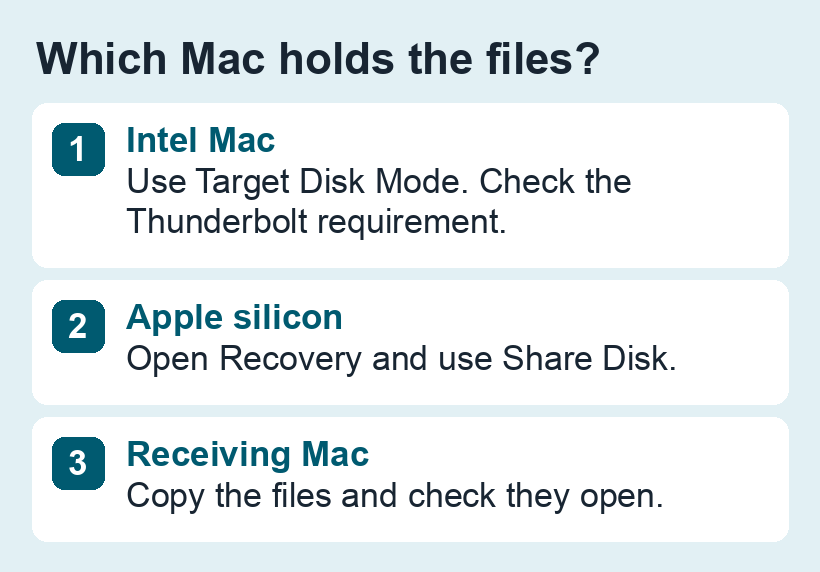
When Finder on the old Mac isn’t available, you may still be able to copy files to another Mac over a cable. Identify the processor of the Mac that holds the files. An Intel Mac uses Target Disk Mode. A Mac with Apple silicon shares a volume from macOS Recovery.
Before you start
Call the Mac containing the files the source and the other one the receiving Mac. If the source still boots, choose Apple menu → About This Mac. The Chip or Processor line tells you which method to use. Plug both laptops into power if possible, make room on the receiving Mac, and have the password you use to unlock the source disk available.
This method copies the folders you choose. If you need user accounts and settings too, use Apple’s Migration Assistant.
1. Pick a cable for the two Macs
For Intel Target Disk Mode, check both Macs and their macOS versions. Apple requires Thunderbolt if either Mac runs macOS 11 or later. For Share Disk, Apple lists USB, USB-C or Thunderbolt. A USB-C connector by itself doesn’t tell you which kind of connection the cable supports. If either Mac uses an adapter, check that the whole connection supports the required standard.
2. Start the source Mac in the appropriate mode
- Intel: connect both Macs. Start the source while holding T. On the receiving Mac, look for the source disk in Finder and unlock it if prompted.
- Apple silicon: shut down the source, then hold the power button until startup options appear. Choose Options → Continue. In Recovery, open Utilities → Share Disk, select the volume and start sharing. On the receiving Mac, open Finder → Network, select the source Mac and connect as Guest as described by Apple.
What should appear on the receiving Mac?
| Source Mac | Where to look on the receiving Mac | If it’s missing |
|---|---|---|
| Intel, using Target Disk Mode | Look for a disk under Locations in Finder. On the source, a cable or Thunderbolt symbol can show that it entered the mode. | Try a direct Thunderbolt connection if required and check that the source actually started in Target Disk Mode. |
| Apple silicon, using Share Disk | Open Network in Finder. After connecting to the source Mac, open the shared volume. | Return to Recovery on the source and confirm that the correct volume is selected and sharing has started. |
If the connection drops during copying, copy one folder at a time after you have checked the cable and ports. If the source asks to erase a disk, cancel. If an encrypted volume won’t unlock, this method still needs the correct credentials.
3. Copy and verify
Copy the files to a folder on the receiving Mac. For a project with linked media, copy its entire folder. Open several files before erasing, trading in or retiring the old Mac. If the file arrives intact but still doesn’t open, try the workflow for older file formats and applications.
Example: copy an old video project and the adjacent footage folder into a new folder on the receiving Mac. Compare both folders in Finder, then open the project and play a clip from the beginning and end of its timeline. If the app reports missing footage, check where its original media lived before disconnecting the source.
For Intel, eject the volume in Finder before disconnecting. For Apple silicon, eject the share on the receiving Mac and stop sharing in Recovery before disconnecting.
Sources: Apple’s Target Disk Mode instructions and macOS Recovery and Share Disk.