How to add an APFS volume to an external SSD without erasing it
Published
If your external SSD already has an APFS container, you can add another APFS volume to it in Disk Utility while keeping the existing volume and its files. Make a separate backup first and identify the right disk by name and capacity.
1. Confirm that the SSD already uses APFS
Open Disk Utility → View → Show All Devices. Find your external SSD, then look underneath it for an APFS container and volume. This procedure adds a volume inside an existing APFS container. If the SSD has only exFAT, choose another disk or make and verify a separate copy before changing the disk layout. See how to choose between exFAT, APFS and NTFS.
2. Add a volume in the existing container
- Select the existing APFS volume on the external SSD. Click Add Volume in the toolbar.
- Name the volume and choose an APFS format. Choose encryption if you need it and can keep the password accessible separately.
- Use Size Options only if you need to manage space. Click Add, then check in Finder that the original files and the new volume are both visible.
Apple’s APFS volume guide shows the controls for adding and sizing a volume.
3. Choose a quota or a reserve if needed
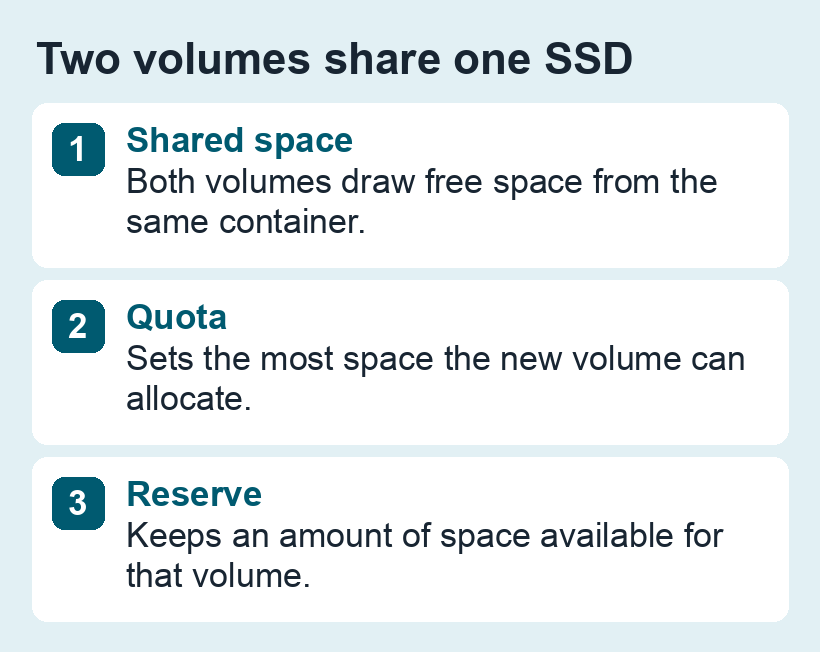
- Quota puts a ceiling on how much space the volume can allocate. For example, use a 200 GB quota if a scratch volume should stay within 200 GB.
- Reserve keeps a specified amount available to the volume. Use it when that volume needs guaranteed room, knowing that other volumes then have less flexibility.
- Shared space is the default. Both volumes draw from the same container, so Finder’s available-space figures are not independent pools.
Two volumes on one SSD still share the same physical device. To safeguard files if that SSD fails, back up the SSD to a separate disk or copy its files to a separate device.