How to test a Time Machine backup by restoring a file
Published
A recent Time Machine backup is a useful signal. A small restore test also tells you whether you can find and use a file from that backup. You can test this with two versions of a throwaway document without touching important files.
1. Create a file you can recognise
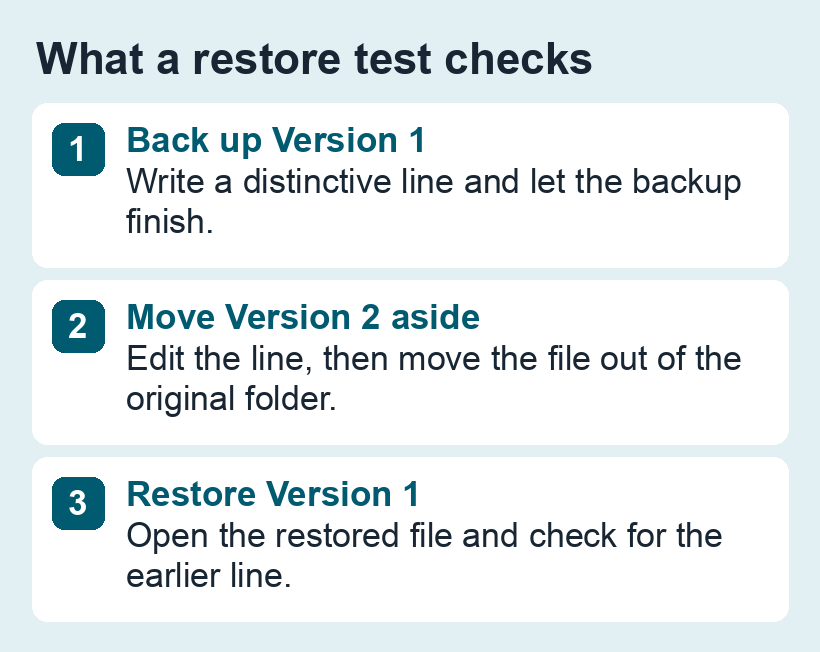
- In Finder, create a folder named Time Machine Restore Test inside a local folder that Time Machine backs up. Use a location outside cloud storage for this test. Make a plain-text file in the folder and put a distinctive line in it, such as Version one before backup.
- Connect or reach your backup disk. From the Time Machine menu, choose Back Up Now and wait for it to complete. Note the time so you can find this copy later.
- Change the text to Version two after backup. Move the edited test file to a different folder so there is no file to replace at the original location.
2. Restore the earlier copy
- In Finder, open the original test folder. Open Time Machine and browse the available backups.
- Select the snapshot from the time you noted. Choose your test file and click Restore. Time Machine returns the item to its original location.
- Open the restored file and check that it says Version one before backup. The newer version should still be in the folder where you moved it.
3. If the file is missing from the backup
- Wrong snapshot: check the timestamp and wait for the selected backup to finish loading.
- Excluded folder: in System Settings → General → Time Machine → Options, check whether the source folder or drive was excluded. Fix the exclusion, back up again and repeat the sample restore.
- Cloud-only file: download a local copy and test it from a folder that is actually backed up. For photos, check how your library and referenced originals are stored. See what a Photos export preserves.
A successful restore verifies the file and snapshot you tested. If you plan to replace the Mac, check representative files, folders and app libraries before relying on the backup to move your old files.
See Apple’s instructions for restoring items from Time Machine and checking exclusions.
If the Mac has no configured backup disk yet, start with setting up a separate Time Machine drive.