External SSD disconnects after sleep on Mac: what to check
Published

If an external SSD disconnects after sleep and macOS reports “Disk Not Ejected Properly”, check whether the SSD also drops out when connected directly. Comparing the same drive in two setups helps narrow down a problem with the dock, cable, power or drive.
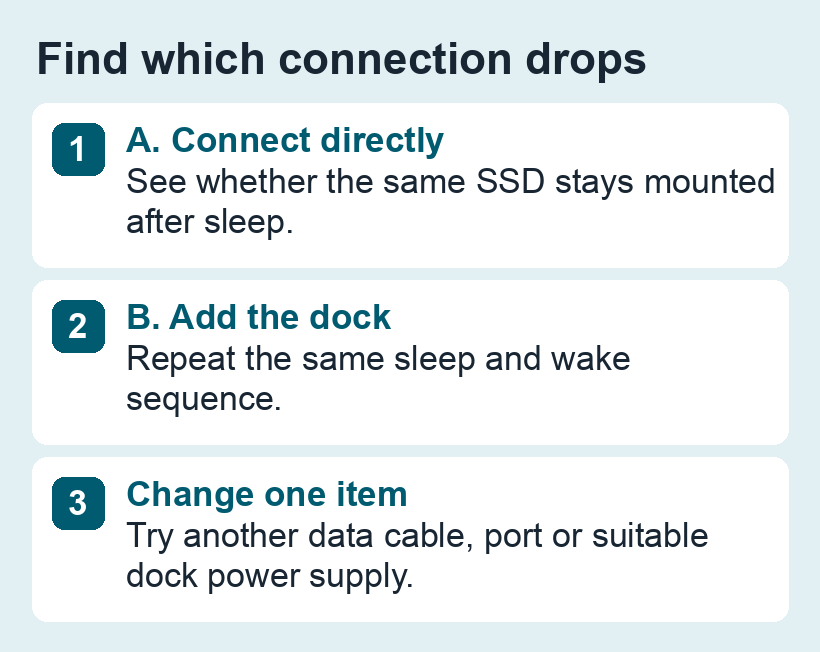
1. Check when it happens
Note whether the warning follows sleep and wake, a large transfer, or both. Record the macOS version, the SSD and enclosure models, and how they connect. Copy important files while the drive is stable. If it drops out repeatedly with your only copy, prioritise getting the data off the drive before more tests.
2. Compare direct connection and dock
- Wait for writes to finish and eject the volume before changing connections. Plug the SSD directly into the Mac using a data cable you trust.
- Try the same sleep and wake sequence. Avoid running a long write during this check. See whether the volume is still available in Finder afterwards.
- If the direct connection works, add the dock back with the same cable where possible. Try a different port or a suitable power supply for the dock. Change one item at a time and note whether the warning returns.
If both setups drop the disk, try a second cable and port directly. If you can, compare on another compatible Mac. If the drive disappears entirely, use the Finder and Disk Utility checklist to determine whether the device or only the mounted volume is missing.
3. Decide what to do before relying on the drive
If the fault happens only through the dock, use the stable connection while you check the dock vendor’s power and firmware guidance. If it happens during normal copying on multiple connections, treat the drive or enclosure as suspect. Once the data is secure, check the manufacturer’s diagnostics and the step-by-step First Aid guide. For scheduled sleep when you don’t need the SSD connected, eject it in Finder first.
If this is your Time Machine destination, confirm a backup completes on the stable connection, then restore a sample file before relying on the new backup.
For known connection and power causes, see Seagate’s guide and SanDisk’s troubleshooting guide.