Restore a Mac user account from Time Machine
Published
Use Migration Assistant when you need a whole user account from Time Machine. For one missing file, restore the file directly. The account workflow below assumes macOS already runs on the receiving Mac.
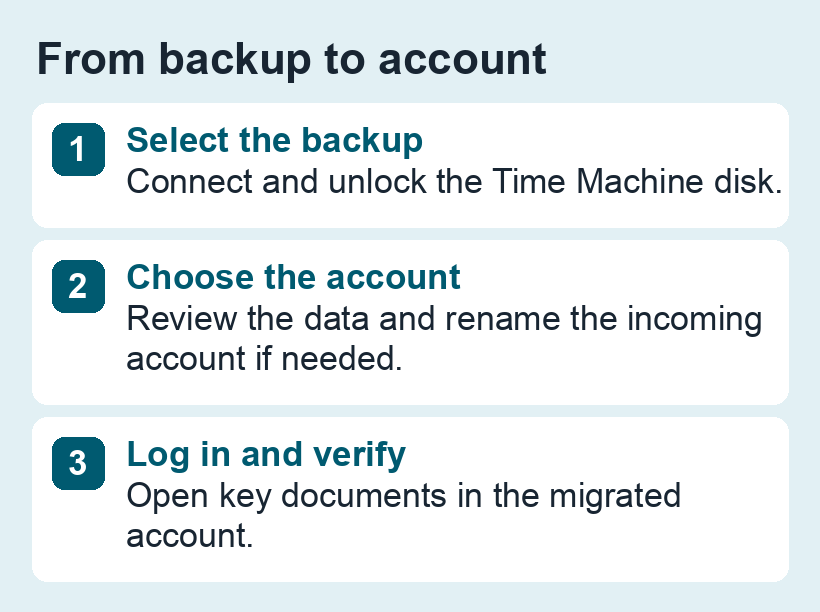
1. Prepare the receiving Mac and backup
Connect the Time Machine disk and have its encryption password available if required. Check available storage. If the receiving Mac already contains important files, make a separate copy before migrating. Note the names of existing accounts and pick the backup date that should contain the files you need.
2. Select the account in Migration Assistant
- Open Migration Assistant from Applications → Utilities or Spotlight. Follow the prompts and select the option to transfer from a Mac, Time Machine backup or startup disk.
- Choose the backup disk and then the appropriate backup date. Wait while Migration Assistant calculates the available transfer items.
- Select the user account. Review applications, files outside the account, and settings separately. Confirm whether you need those categories before starting the transfer.
3. If the account name already exists
Migration Assistant can offer to replace the existing account or give the incoming account a different name. For example, if both Macs have an account named Alex and the receiving Mac has new files, rename the incoming account to Alex Archive to keep separate logins. Decide whether to merge files after checking the migrated account. Apple notes that when replacing an account, you may be offered a copy of its data under Deleted Users. Keep a separate backup before choosing replacement.
4. Log in and verify the transfer
Once migration finishes, sign in to the migrated account. Check Desktop and Documents, open a representative project, and confirm access to any needed photo library. If you used iCloud Drive, check whether originals are local with the iCloud download guide. If the backup does not appear, confirm it is connected and unlocked. For an absent external drive, start with the Finder and Disk Utility checklist.
During migration, follow the password prompts for the type of account you selected. Migration Assistant can ask you to set a password for a transferred administrator account or display a temporary password for a standard account. Keep it available until the first login. Leave both the Mac and backup drive connected until migration completes.
See Apple’s Time Machine restore instructions for the full flow and account prompts.