External drive is read-only on Mac
Updated
If your Mac can open files on an external drive but can’t save changes, start with two checks: can it write to the drive at all, and does the problem affect every folder? That tells you whether to look at the format, the available space or a specific folder’s permissions.
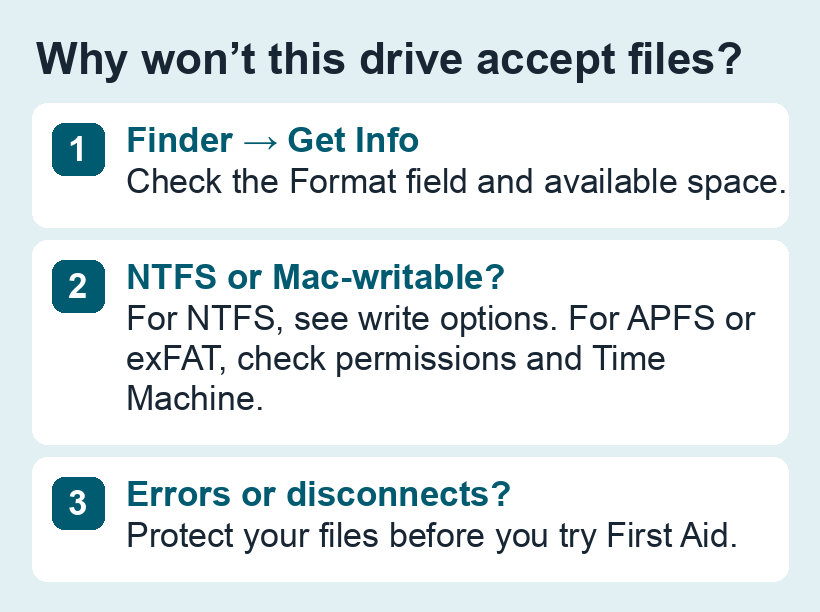
1. Check where writing fails
In Finder, select the drive under Locations and press ⌘ + I. Note the format and available space. If the drive has no signs of failure, try making an empty folder in a location where you expect to have write access. If you can create the folder there but can’t change an existing file, check that file’s permissions or whether it is locked.
2. Match the symptom to the format
- NTFS: macOS can usually read the drive, but it can’t normally write to it. You can copy files off an NTFS drive without erasing it. Use a Windows computer or a compatible driver if the disk must stay NTFS and you need to write to it.
- MS-DOS (FAT32): if a small file copies but a single file around 4 GB or larger fails, check the per-file size limit. Free space alone won’t fix that. See which format to choose before changing the disk.
- exFAT, APFS or Mac OS Extended: macOS can normally write to these formats. Continue with the checks below.
3. Check space, ownership and Time Machine
- Space: compare the size of the file or folder you’re copying with the drive’s available space. Test with a smaller file if needed.
- Ownership: on a personal Mac-formatted drive, open Get Info → Sharing & Permissions. An administrator can use Ignore ownership on this volume when the option is available and the drive belongs to them. On a shared or work drive, ask the owner to check access.
- Time Machine: if the volume is reserved for backups, use a separate volume or drive for ordinary files. Keep the backup intact while you decide where those files should live.
4. Check the disk after protecting the files
If the drive disconnects, reports I/O errors or holds your only copy, prioritise recovering the files. Once they’re backed up, you can check an otherwise stable disk with Disk Utility → View → Show All Devices → First Aid. If First Aid reports an error it can’t fix, keep the verified copy before considering an erase or replacing the drive.
See Apple’s troubleshooting guide for external drives and our First Aid walkthrough.
If the volume isn’t available in Finder, start with the Disk Utility and Finder checklist. If the SSD disappears after wake, see how to compare direct and dock connections.